How to setup roster sync using SSO and Microsoft Authenticator?
Flying with IndiGo? Use the new on-device setup

IndiGo pilots using the Wingman Pilot Logbook app no longer need the Microsoft Authenticator steps below.
Wingman can now connect to your IndiGo roster on your own phone. You sign in once, on IndiGo's own eCrew page inside the app — authenticator step included — and your roster imports on its own after that. There is no code to type against a 30-second clock, and nothing to re-enter each time.
How to connect your IndiGo roster on your device →
Wingman can now connect to your IndiGo roster on your own phone. You sign in once, on IndiGo's own eCrew page inside the app — authenticator step included — and your roster imports on its own after that. There is no code to type against a 30-second clock, and nothing to re-enter each time.
How to connect your IndiGo roster on your device →
Using AirRoster? The on-device connection is set up in the Wingman Pilot Logbook app — it is not available in AirRoster itself.
If you use both apps with the same email, connect once in Wingman Pilot Logbook and AirRoster picks up that connection automatically — nothing to set up there.
If you use AirRoster only, please carry on with the Microsoft Authenticator steps below; they still apply to you.
If you use both apps with the same email, connect once in Wingman Pilot Logbook and AirRoster picks up that connection automatically — nothing to set up there.
If you use AirRoster only, please carry on with the Microsoft Authenticator steps below; they still apply to you.
The steps below also still apply to other airlines that use a roster system with Microsoft Authenticator.
If your airline is using any roster system(AIMS ecrew, CAE etc.,) with Microsoft Authenticator, follow this guide to resume your auto roster import on both of our apps (Wingman Pilot Logbook & AirRoster)
Verify MS authenticator setup
How to setup MS Authenticator the properly?
1. Open MS Authenticator
2. Check if you have your airline ID already added.
3. If not, follow the next section on "How to add airline ID on MS Authenticator"
4. Click on your airline ID and check if it shows an OTP (like the reference image below)
5. If the OTP is visible, you can continue this guide.
6. If the OTP is not visible, it means you haven't setup MS Authenticator correctly, and you have to remove your account and add it as per the steps below.
7. If you don't know the correct password for your company e-mail ID on MS Authenticator, you have to reset your password. It is required for the login to work.
If configured correctly, it should look like the image below.
Add Airline eCREW ID to MS Authenticator
-
If your id is already there in MS Authenticator, remove it.
-
Press add account. Select “Work or School id”
-
Login with Airline email id.
-
Complete all steps to register your phone for receiving login notifications. Do not skip any step.
- Once configured, it should look like the image above.
SSO ROSTER SETUP IN WINGMAN PILOT LOGBOOK
Please check this video for the procedure. Steps to setup as follows.
1. Go to the "More" tab and verify the version of the app. Must be 1.0.67-6 or later. If not, follow the guide to update your app.
2. Go to the "Roster Import" tab and click "Setup Credentials"
3. Select your airline and then enter your company
4. Click "Login" and wait. It may take upto 1 minute.
5. You will get a popup on Wingman app, with a 2 digit code.
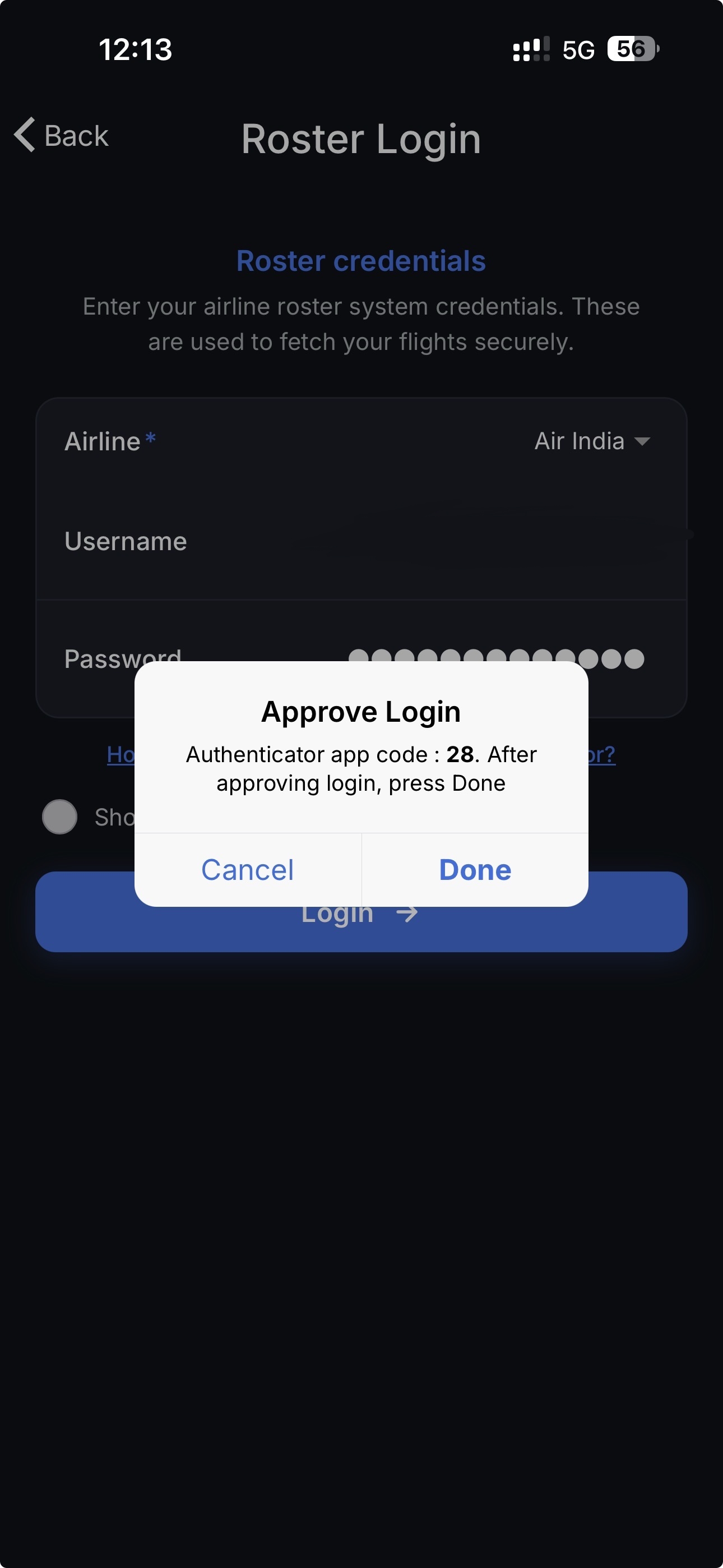
6. Meanwhile, you will also get a popup on MS Authenticator.
7. Enter the 2 digit code on the MS Authenticator and press "done"
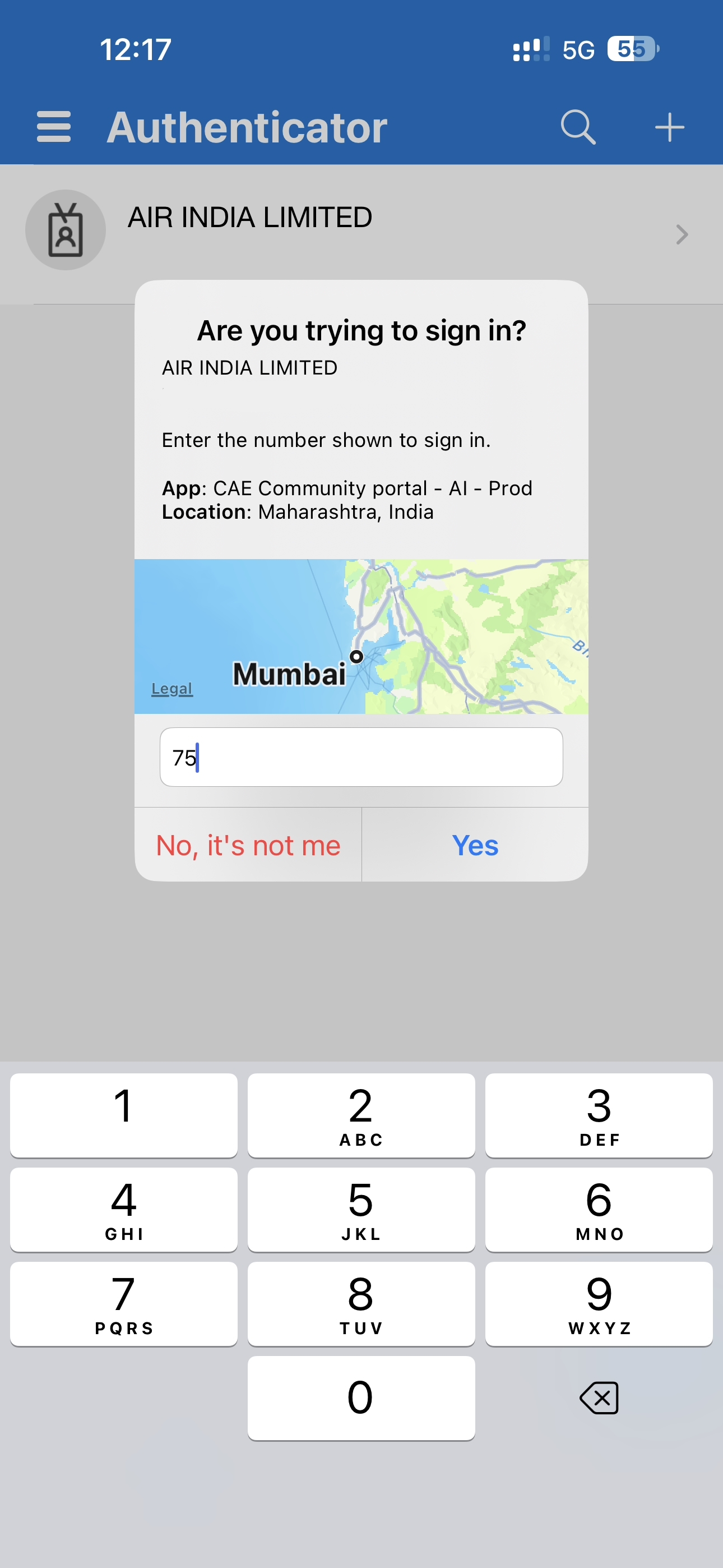
8. Now, click "Done" on Wingman app.
9. Wait for the login to complete. You will get a popup with message "Code verification successful" ~ it may take upto 120 seconds.
Voila, you've authenticated your Airline Roster with MS Authenticator.
5. You will get a popup on Wingman app, with a 2 digit code.
6. Meanwhile, you will also get a popup on MS Authenticator.
7. Enter the 2 digit code on the MS Authenticator and press "done"
8. Now, click "Done" on Wingman app.
9. Wait for the login to complete. You will get a popup with message "Code verification successful" ~ it may take upto 120 seconds.
Voila, you've authenticated your Airline Roster with MS Authenticator.
Tip: If you use the same personal e-mail ID on both apps, you can set the MS Authentication on 1 app, and it'll persist your session.
SSO SETUP STEPS FOR AIRROSTER
Please check the video for the procedure. Steps for setup as follows.
1. Open the AirRoster app, go to the "Settings" tab
Verify that you're on Version 2.0.33 or higher.
The update should prompt automatically and installation takes <2 seconds
The update should prompt automatically and installation takes <2 seconds
2. Once done, on the "Duties" tab, click "Connect your airline roster"
3. Select your airline and then enter your company EMAIL ID (eg: john.doe@easyjet.com) and PASSWORD
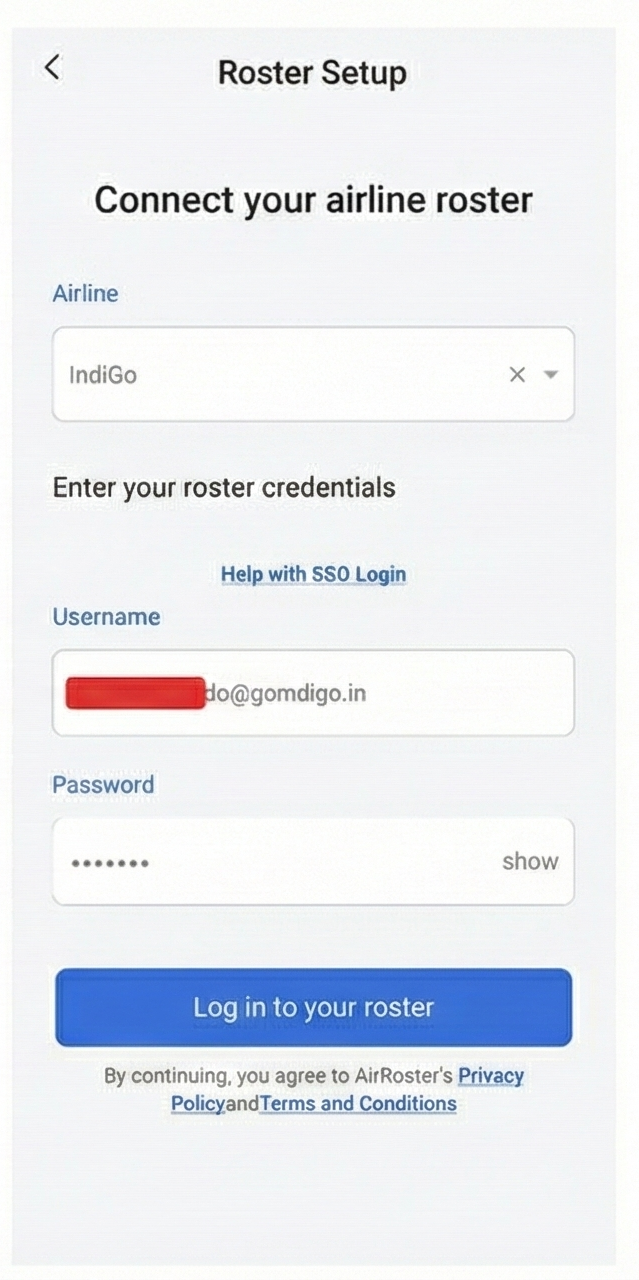
4. Click "Login to your roster" and wait. It may take upto 1 minute.
5. You will get a popup on the AirRoster app, with a 2 digit code.
4. Click "Login to your roster" and wait. It may take upto 1 minute.
5. You will get a popup on the AirRoster app, with a 2 digit code.
6. Meanwhile, you will also get a popup on MS Authenticator.
7. Enter the 2 digit code on the MS Authenticator and press "Done"
8. Now, click "Done" on AirRoster app.
9. Wait for the login to complete. You will get a popup with message "Code verification successful" ~ it may take upto 120 seconds.
Voila, you've authenticated your Airline Roster with MS Authenticator.
Common trouble shooting steps
Most of the issues you face with the MS Authenticator setup are easily rectifiable. It's mostly a step not done properly.
- You receive login codes via SMS or Outlook - This means that your MS authenticator has NOT BEEN SETUP CORRECTLY to receive the codes.
- MS Authenticator shows “ENTRA ID” - Your MS authenticator is not setup correctly. Follow the guide at the top of this article.
- Login is stuck in the app at "verifying code" stage.
- Close the app by swiping it away and open again. Then attempt the setup credentials again, it will work.
- If your login is stuck on the app and you have verified correct MS authenticator setup as per STEP 1, then you need to make multiple attempts after closing the app fully by swiping it away.
If you still face issues after following all the steps above, please send us a SCREEN RECORDING of the issue to support@wingman.zohodesk.com to quickly assist you.